Configuring Transitions
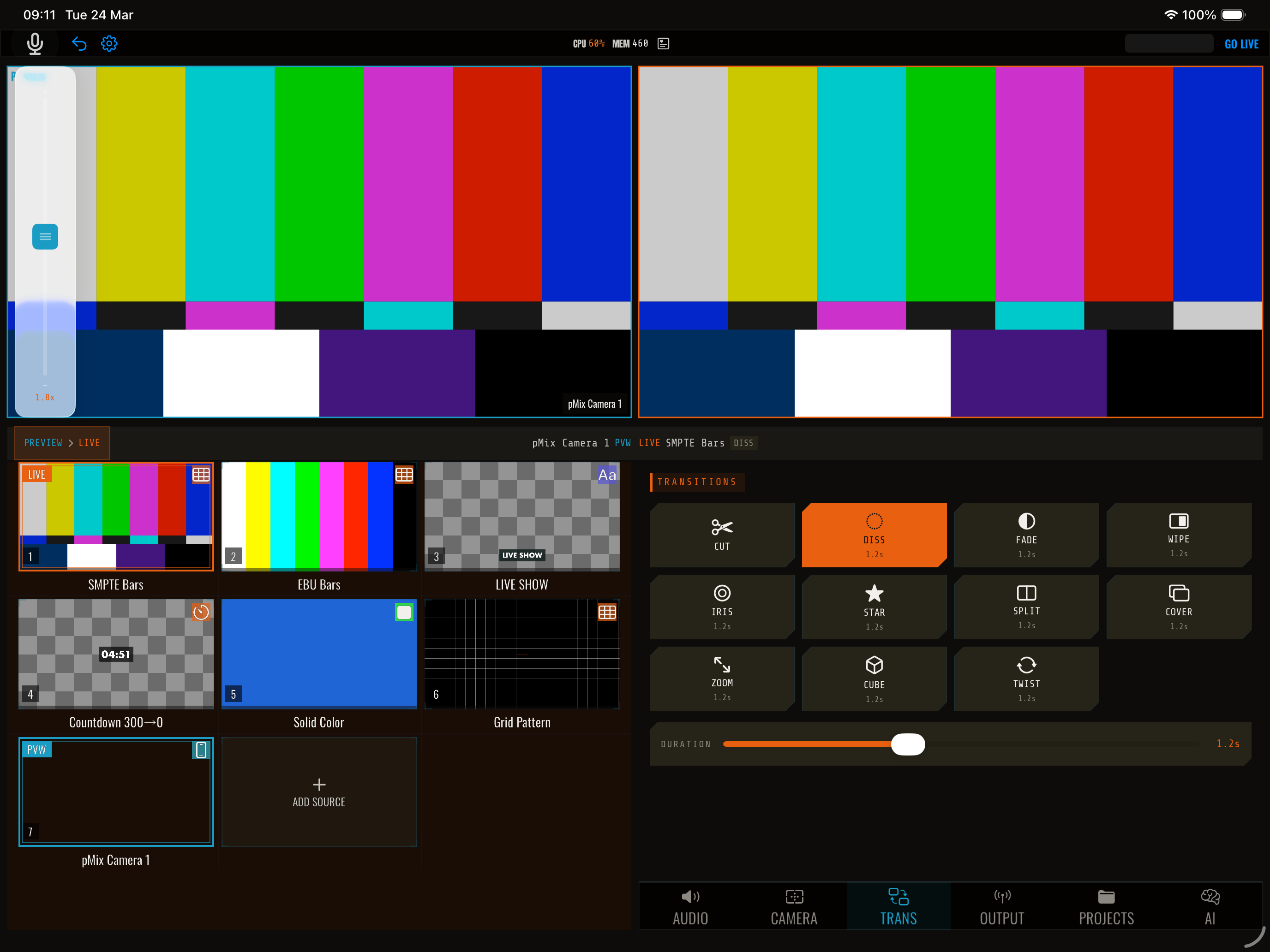
pMix.studio lets you configure exactly how transitions look and feel. The transition settings apply globally — every time you tap the transition button, it uses the current configuration.
Opening the Transitions panel
Tap Transitions in the control panel area to open the transition settings.
Settings
Type
Select from 11 transition types: Cut, Cross Dissolve, Fade, Wipe, Iris, Star Wipe, Split, Cover, Cross Zoom, Cube, and Twist. See Transition Types for descriptions of each.
Duration
How long the transition takes, in seconds. Drag the slider or enter a value.
- 0.3–0.5s — Fast, snappy transitions
- 0.5–1.0s — Standard, smooth transitions
- 1.0–3.0s — Slow, dramatic transitions
Cut ignores this setting (it’s always instant).
Direction
For transitions that support it (wipe and cover), choose the direction:
- Left — Reveals from left to right
- Right — Reveals from right to left
- Up — Reveals from bottom to top
- Down — Reveals from top to bottom
Easing
Controls the acceleration curve of the transition:
| Easing | Description |
|---|---|
| Linear | Constant speed throughout |
| Ease In | Starts slow, accelerates |
| Ease Out | Starts fast, decelerates |
| Ease In Out | Starts slow, speeds up, then slows down |
Ease In Out is the most natural-looking choice for most transitions.
Fade color
Only for the Fade transition. Choose the color to fade through: Black, White, Gray, Blue, Red, or Green.
Quick transition change
Long-press the transition button (between preview and program) to open a quick menu where you can change the transition type without opening the full panel.
OSC control
All transition settings can be configured via OSC:
| Address | Args | Description |
|---|---|---|
/streamit/transition/type |
string | Set type (e.g., crossDissolve, wipe, fade) |
/streamit/transition/duration |
float | Set duration in seconds |
/streamit/transition/direction |
string | Set direction (left, right, up, down) |
/streamit/transition/easing |
string | Set easing (linear, easeIn, easeOut, easeInOut) |
/streamit/transition/fadeColor |
string | Set fade color (black, white, gray, blue, red, green) |
Tips
- Start with cross dissolve — It’s the safest, most universally pleasing transition
- Match duration to pace — Fast-paced shows need shorter transitions (0.3–0.5s); slower, cinematic shows benefit from longer ones (1.0–2.0s)
- Don’t overuse effects — Cube, twist, and cross zoom are eye-catching but can be distracting if used for every switch. Save them for key moments
- Fade to black for segments — Use a 1–2 second fade to black to mark segment boundaries in your show