AI Voice Control Overview
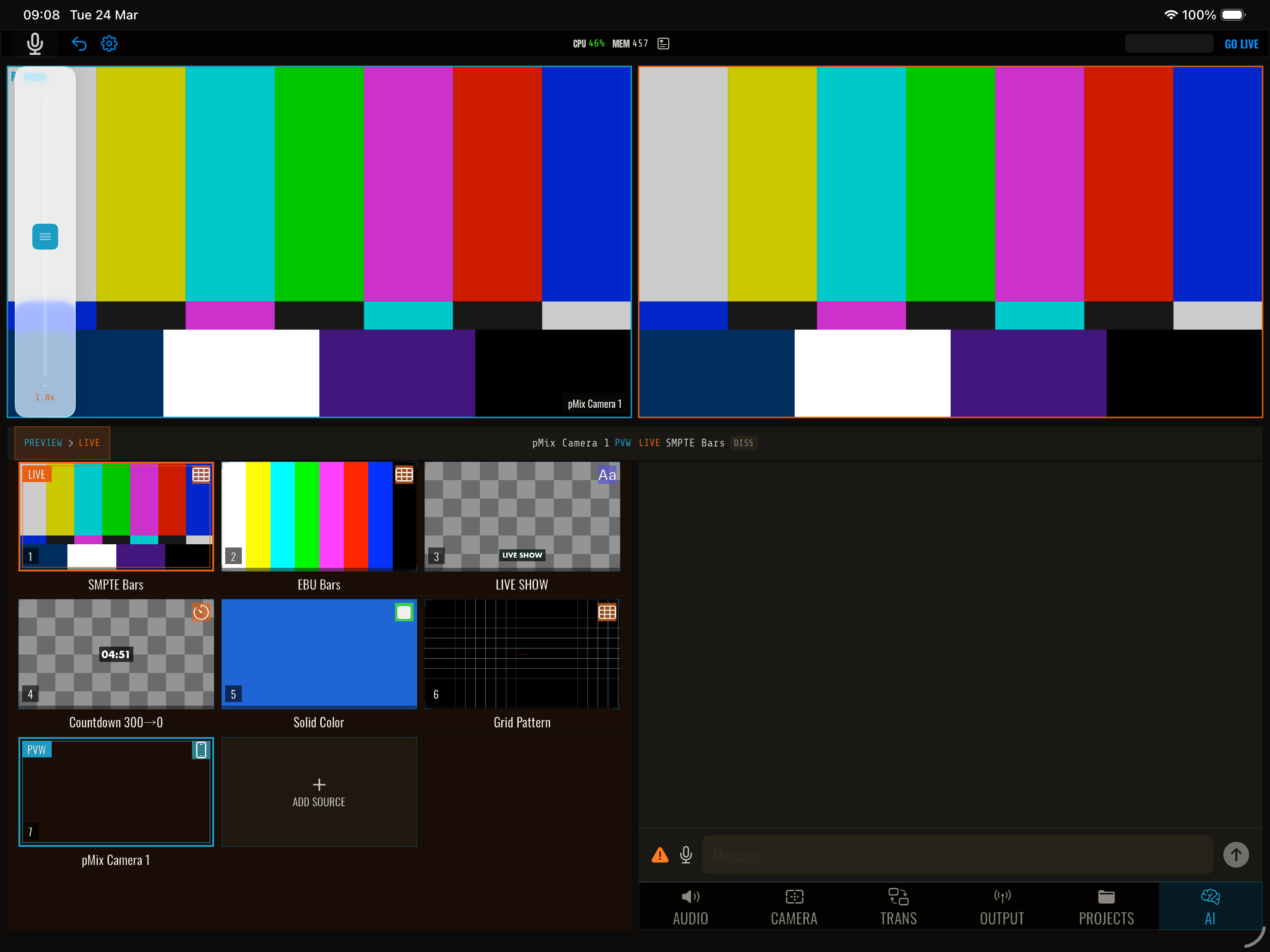
pMix.studio’s AI voice assistant lets you control your production hands-free using natural language commands. Speak to switch cameras, trigger transitions, adjust audio, toggle overlays, and more — without touching the iPad.
How it works
pMix.studio uses on-device speech recognition combined with AI natural language understanding to interpret your commands. You speak naturally, and the system translates your intent into actions.
For example:
- “Switch to camera two” → sets slot 2 as program
- “Dissolve to the wide shot” → triggers a cross dissolve transition
- “Mute slot three” → mutes audio for slot 3
- “Show the lower third” → toggles an overlay
Enabling voice control
- Open Settings
- Enable AI Voice Control
- Grant microphone permission if prompted
Activating the assistant
Use the activation method configured in settings to start listening. The assistant processes your command and executes the corresponding action.
What you can control
- Video switching — Switch cameras, set preview, cut, auto-transition
- Audio — Adjust volume, mute/unmute, toggle monitoring
- Overlays — Show/hide overlays
- Transitions — Change transition type and trigger transitions
- Scenes — Recall scenes
- Output — Start/stop streaming and recording
Tips
- Speak clearly — Clear pronunciation improves recognition accuracy
- Use slot numbers — “Camera one”, “slot two”, “source three” all work
- Keep it simple — Short, direct commands work best
- Background noise — Voice control works best in quieter environments; consider using a headset mic in noisy venues