Scenes Overview
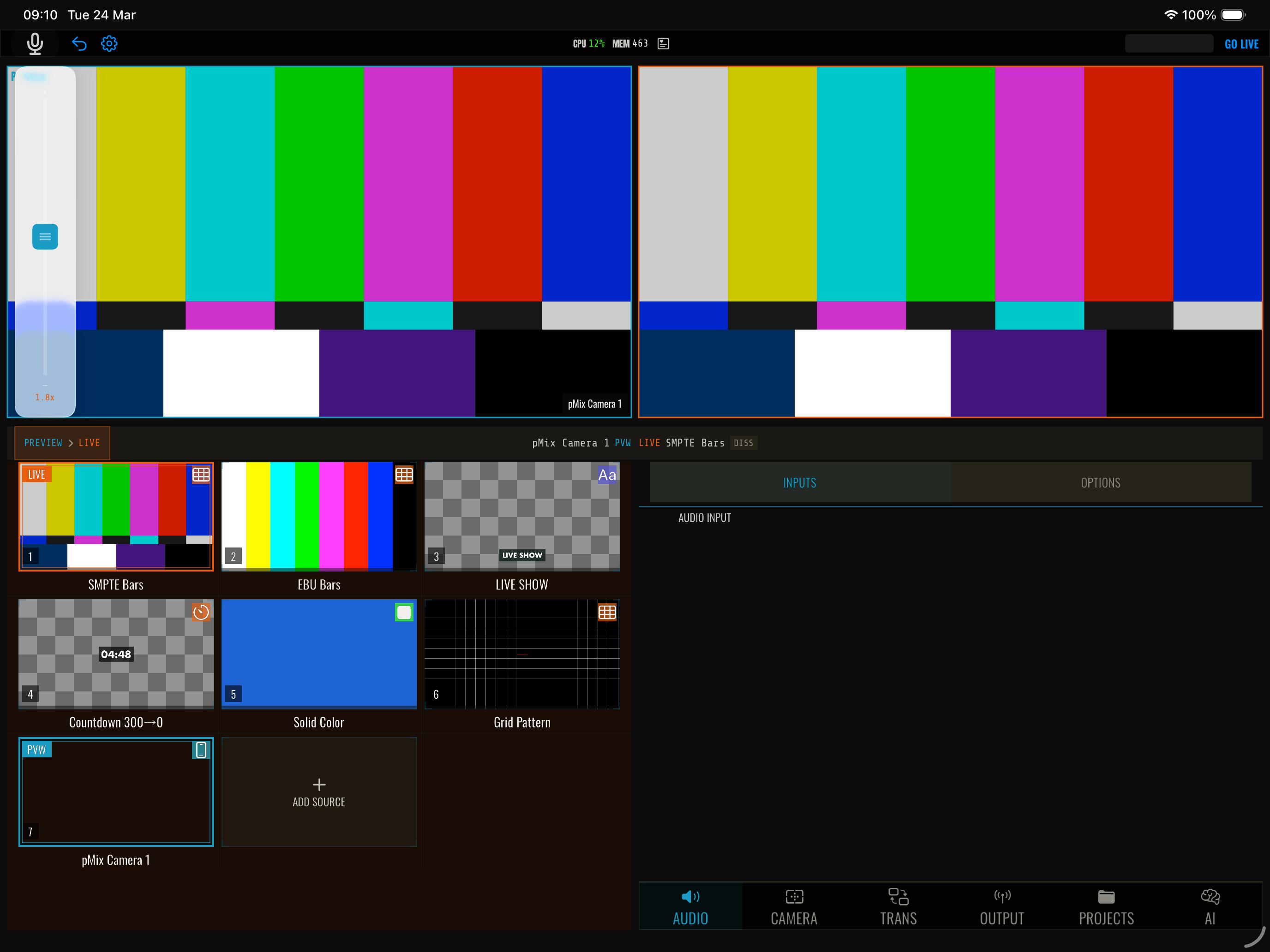
Scenes let you compose multiple video sources into a single layout. Instead of showing one full-screen source, a scene arranges two or more sources side by side, in a picture-in-picture configuration, or in a grid — and you switch to the entire scene like switching to a regular source.
How scenes work
A scene consists of:
- A layout template that defines how many layers there are and where they go
- Layer assignments that map each layer to a source slot
- Layer properties like position, size, opacity, corner radius, and border
- Optional per-layer effects (chroma key, background removal)
When a scene is active on program, pMix.studio composites all the assigned sources into the configured layout in real time.
Available templates
| Template | Layers | Description |
|---|---|---|
| Fullscreen | 1 | Single source, full frame |
| Picture-in-Picture | 2 | Main source + small corner window (25% size) |
| Side-by-Side | 2 | 50/50 horizontal split |
| Stacked Vertical | 2 | 50/50 vertical split |
| Quad Grid | 4 | 2x2 grid |
| Triple Layout | 3 | One large (66% height) + two smaller below |
| Large with Sidebar | 4 | 75% main area + three stacked on the right |
Creating a scene
- Open the Scenes panel
- Tap Create Scene
- Choose a template
- Name the scene
- Assign sources to each layer
The scene appears in the scenes list and can be recalled like switching to a source.
Switching to a scene
Tap a scene in the scenes panel to load it into preview, then transition it to program — or recall it directly. Scenes participate in the same preview/program workflow as regular sources.
Production scenes
In addition to composite scenes (multi-source layouts), pMix.studio supports production scenes that combine a program source with overlays. Production scene templates:
| Template | Description |
|---|---|
| Camera Only | Single source, no overlays |
| Camera + Lower Third | Source with a text overlay |
| Camera + Logo | Source with an image overlay |
| Camera + Countdown | Source with a countdown overlay |
Production scenes let you recall a complete look — source plus overlays — in one action.
Editing scenes
You can modify a scene after creation:
- Reassign sources to different layers
- Adjust layer frames (position and size) for custom layouts
- Change layer opacity for overlay effects
- Set corner radius for rounded corners on layers
- Add borders with configurable width and color
- Apply per-layer effects like chroma key or background removal
- Rename or delete scenes
See Editing Layers for details.