Interface Overview
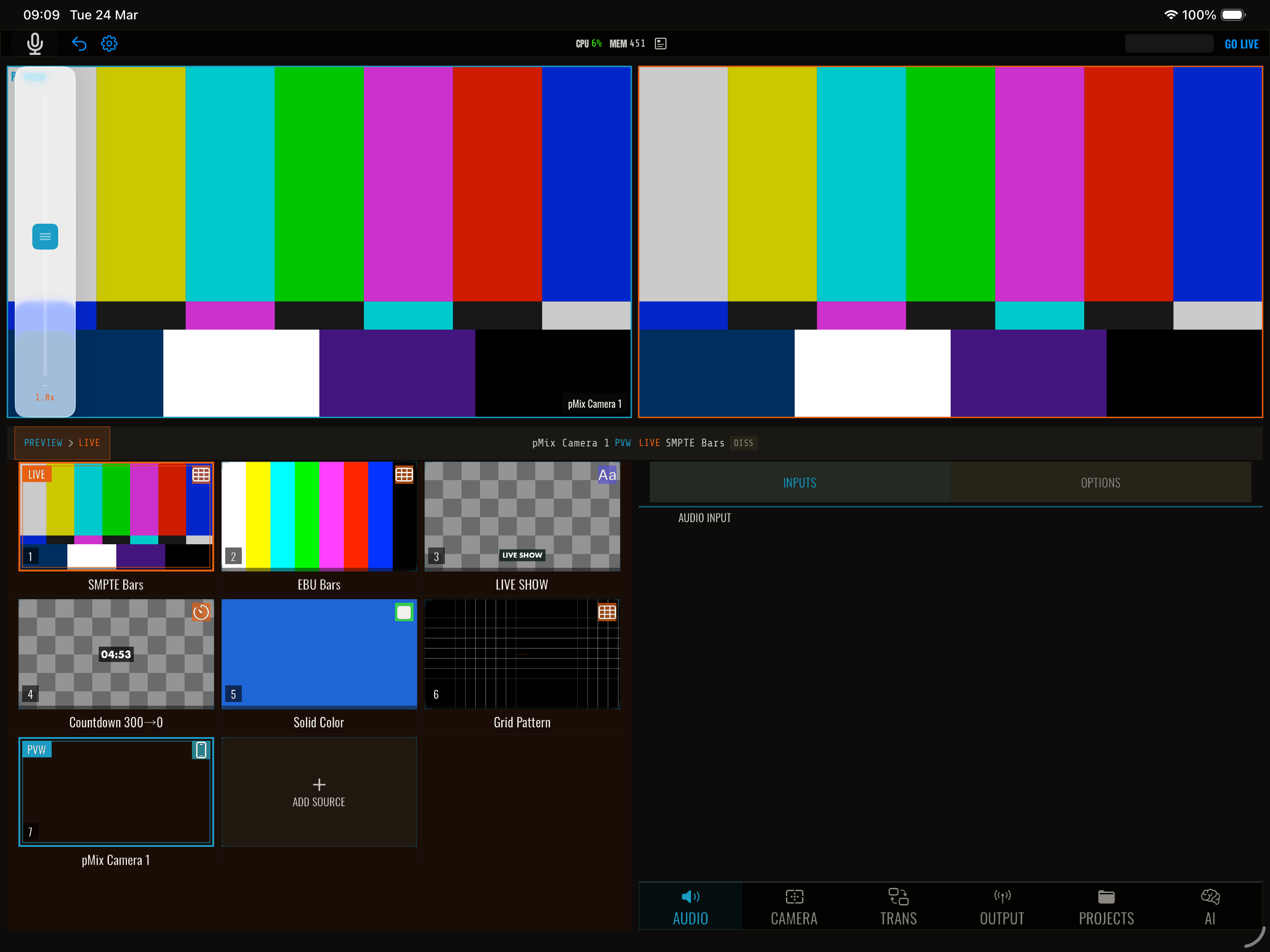
pMix.studio’s interface is organized around the preview/program workflow used in professional broadcast production.
Main areas
Source grid (left side)
The source grid shows thumbnail previews of all your input sources. Each slot shows:
- A live video thumbnail
- The source name
- Audio level meters (VU meters)
- A colored border: green for program (on-air), yellow for preview
Tap a source to select it as preview. The source grid scrolls if you have more than 4 sources visible.
Preview monitor (center-left)
Shows the source you’ve selected to go live next. This is your “look-ahead” — review it here before taking it to air.
The preview area includes:
- The transition button (tap to execute the configured transition)
- Overlay controls
Program monitor (center-right)
Shows what is currently on-air — the output being streamed and/or recorded. This is what your audience sees.
Control panels (right side / bottom)
Contextual panels for:
- Transitions — Choose transition type, duration, direction, and easing
- Audio mixer — Per-source volume faders, mute buttons, and audio meters
- Scenes — Create and switch between multi-source layouts
- Settings — Streaming configuration, output settings, OSC, and more
Status bar
The top of the screen shows:
- Stream status — Live indicator, duration, and health
- Recording status — Recording indicator and duration
- Performance — Frame rate and system health warnings
Quick actions
- Tap a source in the grid → set it as preview
- Tap the transition button → transition preview to program
- Double-tap a source → cut directly to program
- Long-press the transition button → choose a different transition type